

Flow Control allows you to limit how many workflow steps are executed by delaying and queuing their delivery.
This feature helps to:
- Manage resource consumption
- Prevent violations of external API rate limits
- Ensure workflows run within defined system constraints
How Flow Control Works#
When defined limits are exceeded, Flow Control automatically queues and delays step executions instead of rejecting them. This guarantees that all steps are eventually processed while staying within configured thresholds.
To configure Flow Control, you define a flow control key, a unique identifier used to group related steps under the same rate and parallelism limits. The steps that has the same flow control key respect the same constraints.
There are two main parameters to configure:
- Rate and Period: Maximum number of steps that may start within a time window
- Parallelism: Maximum number of steps allowed to run concurrently
These parameters can be combined for fine‑grained control. For example, you can allow up to 10 steps per minute but restrict concurrency to 5 steps in parallel, ensuring more predictable load patterns.
Example#
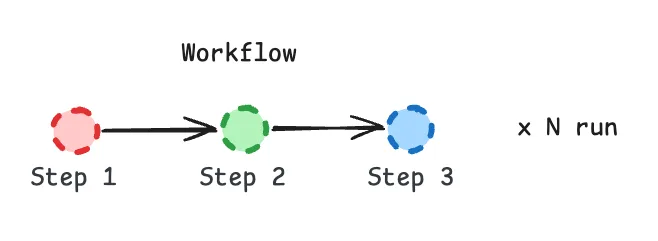
Suppose you have the following workflow:
Now imagine you trigger N workflow runs for this workflow with the following configuration:
Without Flow Control, all workflow runs immediately execute their steps as soon as possible. If the workflow calls an external API in a step, this would likely result in ~N concurrent requests being fired in a very short timeframe, potentially overloading services or breaching API limits.
With the configuration above:
- Rate: At most 3 steps per minute can start across all workflow runs.
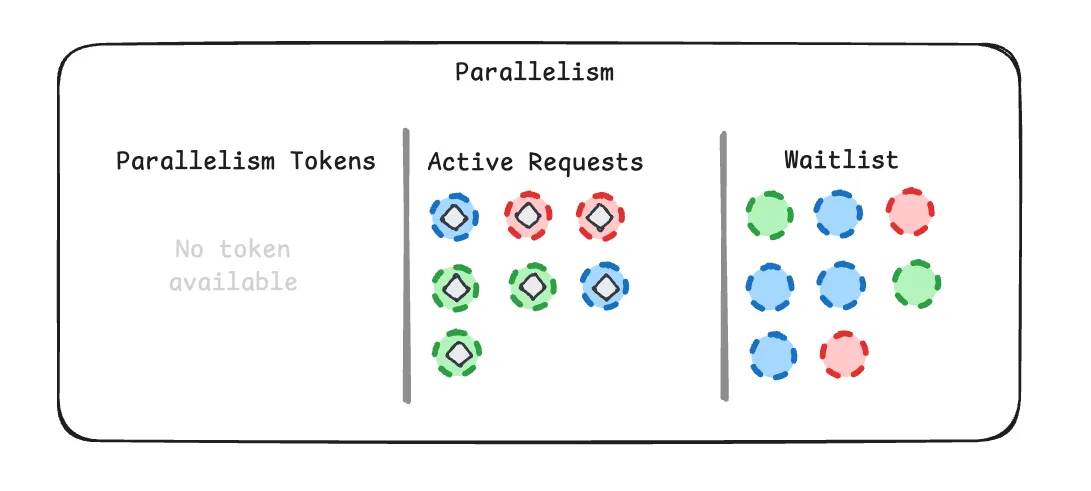
- Parallelism: At most 7 steps can be running at the same time.
Steps that exceed these limits are automatically queued and executed later.
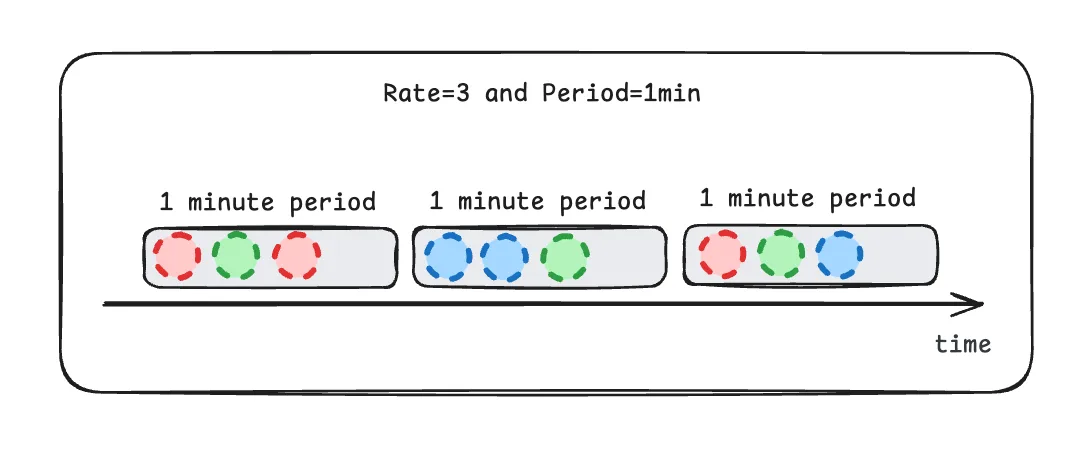
Note that each step above corresponds to a separate workflow run. Because this workflow is sequential, each workflow run has only one pending step at a time. In workflows with parallel branches, multiple steps from the same workflow run may appear in the schedule simultaneously.
Parallelism slots are consumed by running steps. If no slots are available, new steps enter the waitlist until resources free up:
Step-level Flow Control#
The flow control configuration of a run applies to all of its steps. To limit a single context.run step more
strictly, pass a flow control configuration as the third argument of context.run:
Only the charge customer step is bound by the payment-provider key. The other steps keep the configuration
the run was triggered with. Since the key is shared, at most 3 charge customer steps run at the same time
across all runs using that key, no matter how many runs are active.
Following the analogy above, this lets you enforce a parallelism limit on the “green” steps only.
The step-level configuration replaces the run’s flow control for that step as a whole: a step with its own flow control configuration does not also count against the run’s flow control key.
When the step with flow control is reached right after a context.run, context.sleep or
context.sleepUntil step, its configuration is attached to the request which delivers it, at no extra cost.
In other cases (for example, when it is the first step of a run or comes after a context.call),
the SDK publishes an additional hidden request to apply the configuration. This request is not shown in the
workflow logs.
Steps in a parallel group carry their own configuration and never need the extra request.
context.call and context.invoke accept their own flow control configuration too:
- context.call – lets you run external HTTP requests under a separate key, so you can throttle third‑party API calls independently of your workflow logic.
- context.invoke – starts a new workflow run with its own flow control configuration.
Inside a step, context.flowControl returns the flow control configuration applied to the current delivery.
Configuration#
You can configure flow control when starting a workflow run:
All steps within a workflow run will adhere to the specified flow control configuration.
Keep in mind that rate/period and parallelism info are kept on each step separately. If you change the rate/period or parallelism on a new deployment, the old fired ones will not be affected. They will keep their flow control configuration.
During the period that old steps have not been delivered but there are also steps with new rates, Upstash Workflow will effectively allow the highest rate/period or highest parallelism. Eventually (after the old publishes are delivered), the new rate/period and parallelism will be used.